

Blog
How to Set Up IPS Monitoring App on Your Phone (WiFi IPS Models) — Complete Guide

Why WiFi IPS Monitoring Matters in Bangladesh
Load shedding in Bangladesh is unpredictable. You might be at your office in Dhaka or traveling to Chattogram when the power goes out — and by the time you return home, your refrigerator has warmed up, your freezer has melted, or your lithium battery has drained completely.
This is why WiFi IPS monitoring is becoming essential for every Bangladeshi home and business that uses a lithium IPS system. With a smartphone app, you can track battery percentage, solar charging status, load consumption, and receive alerts — all from anywhere in real time.
In this guide, we walk through how to set up IPS monitoring on your phone using HiTHIUM’s WiFi-enabled models. If you own a HiTHIUM HeroEE Light 1, MaxPower 8 AIO, or any WiFi-capable IPS, this step-by-step process will get you connected in under 15 minutes.
Which HiTHIUM IPS Models Support WiFi Monitoring?
Not every IPS in Bangladesh has WiFi capability. Smart monitoring requires a built-in communication module that connects to your home network. Here are the current HiTHIUM models that support it:
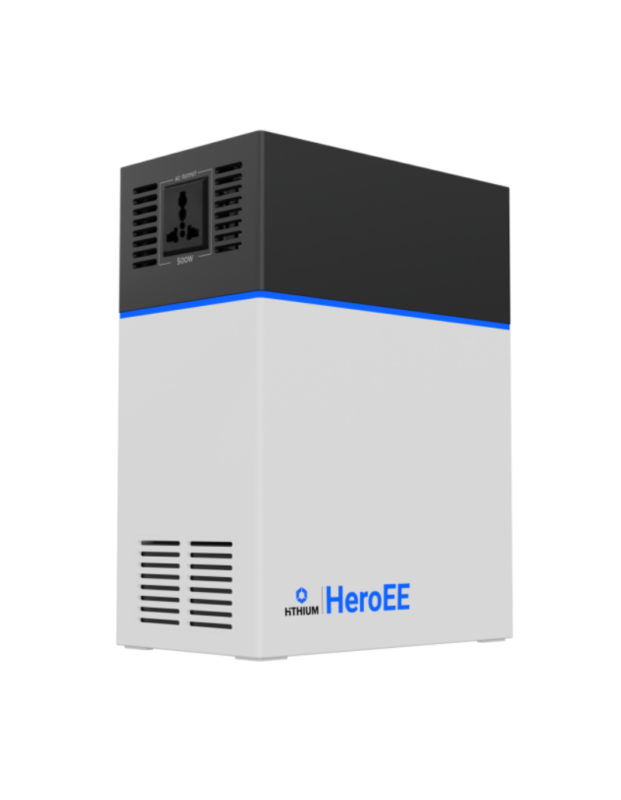
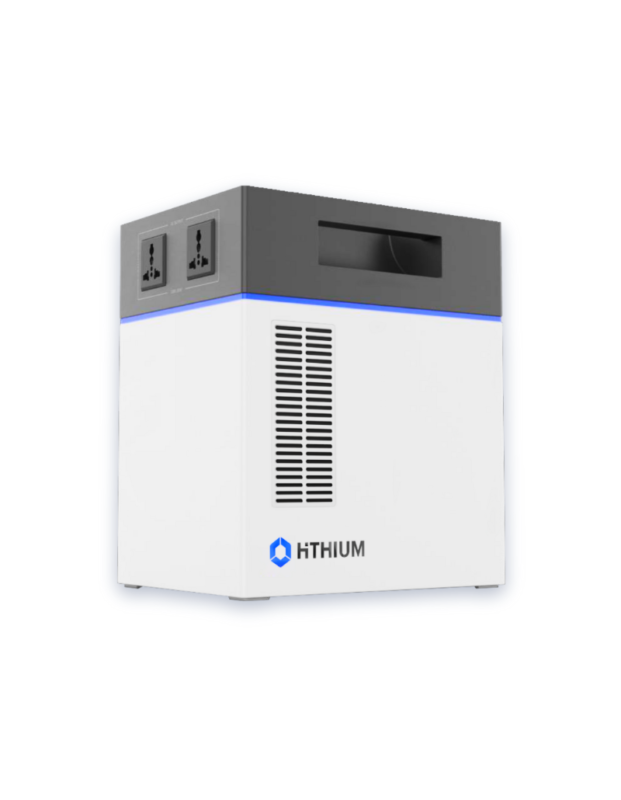
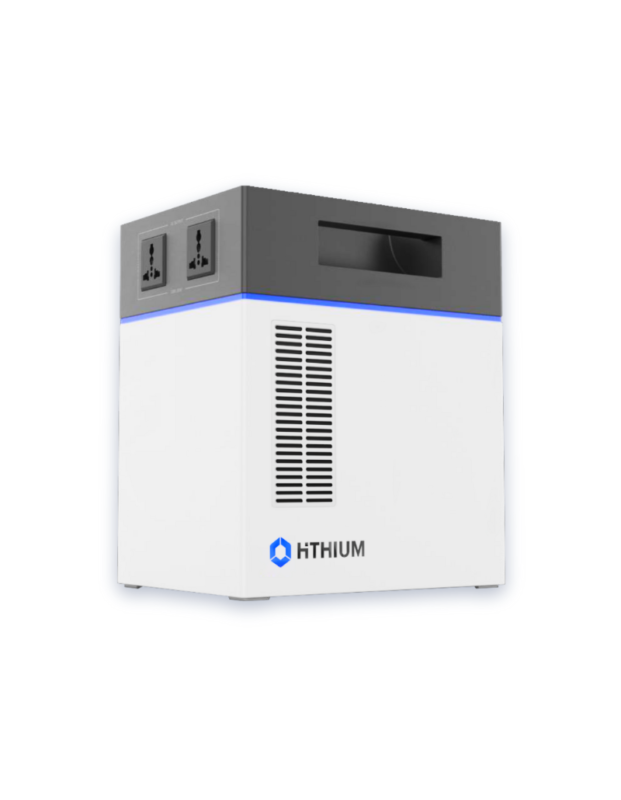
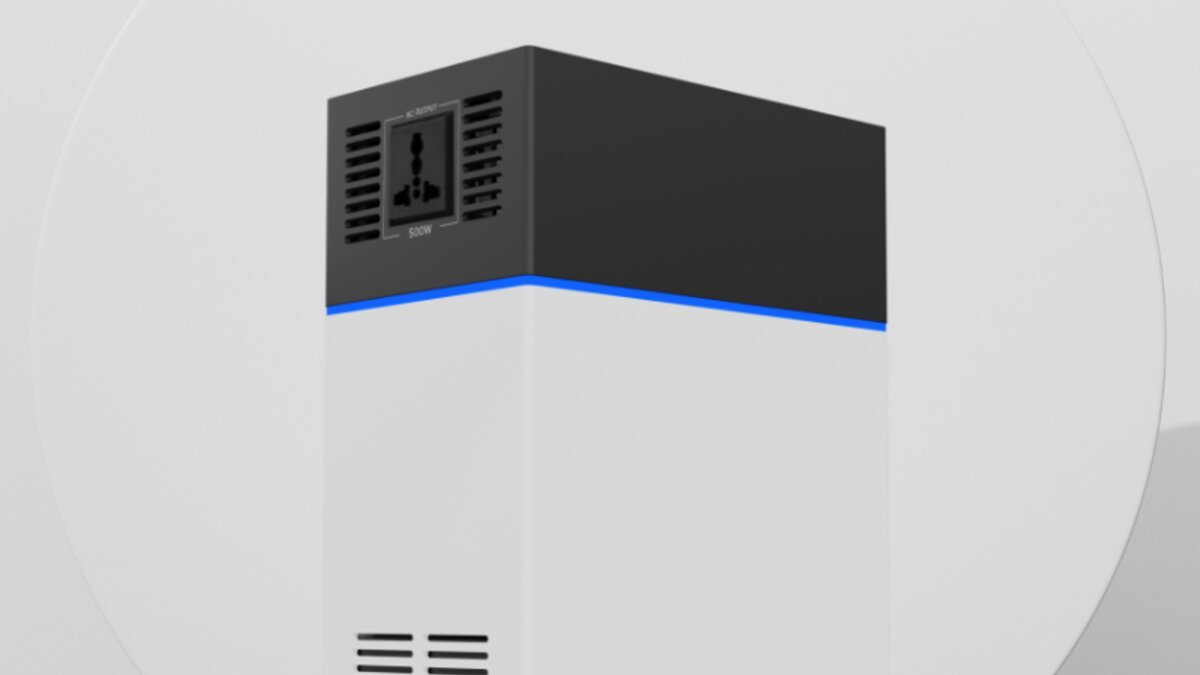
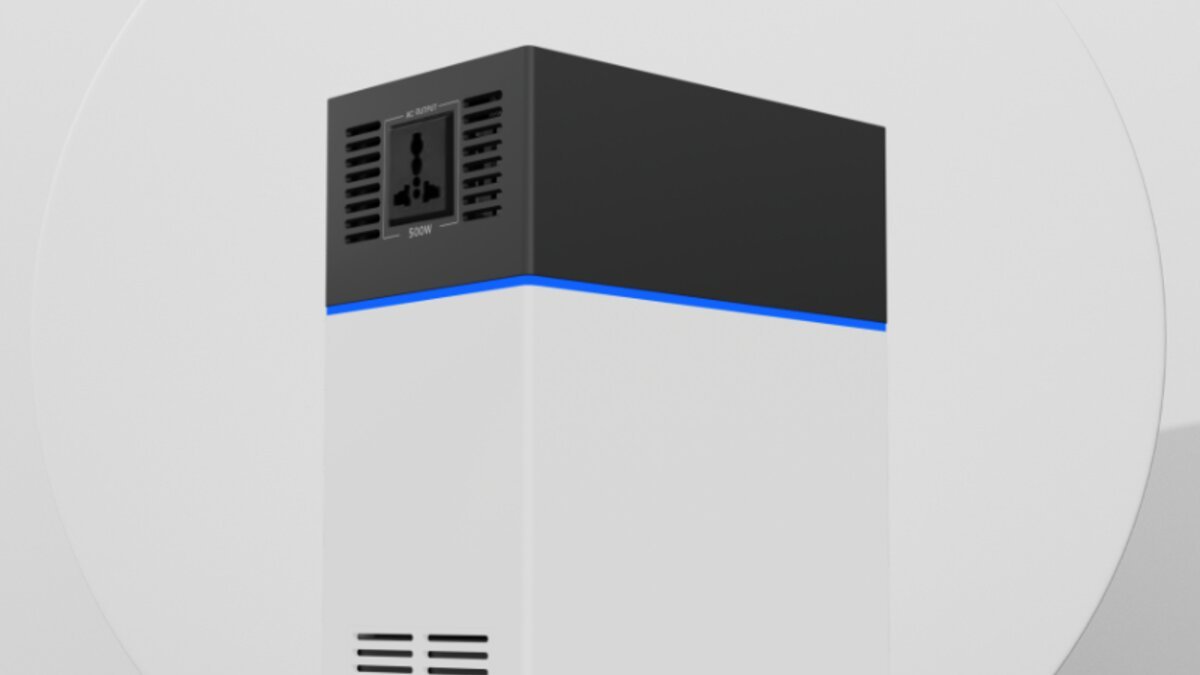
- HiTHIUM HeroEE Light 1 (1004.8Wh, 500W output) — Buy HeroEE Light 1 — BDT 50,800. Compact portable IPS
- HiTHIUM MaxPower 8 AIO (8kWh, all-in-one) — Buy MaxPower 8 AIO — BDT 287,000. Complete home energy storage
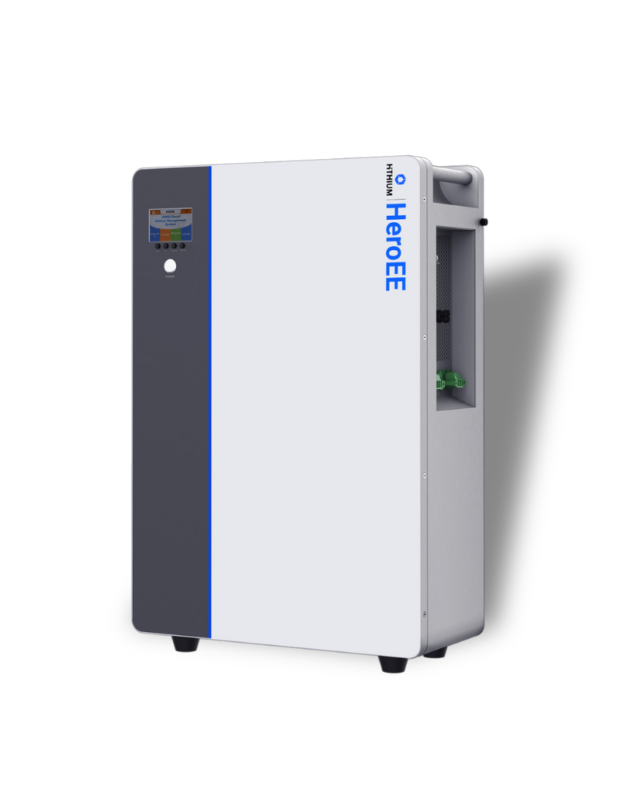
- HiTHIUM HeroEE 4 (4019Wh battery + 1.6kW inverter) — Buy HeroEE 4 — BDT 74,500. Scalable system with app monitoring.
- HiTHIUM HeroEE 4(4019Wh standalone battery) — Buy HeroEE 4 — BDT 74,500. Pair with any compatible inverter and monitor via app.
All of these models use the HiTHIUM Smart mobile application (available for Android and iOS) to provide real-time data from your IPS system.
What You Can Monitor Through the HiTHIUM App
Once your IPS is connected to WiFi, the app gives you comprehensive visibility into your entire power system. Here is exactly what you can see and control:
- Battery level: Current charge percentage and estimated runtime in hours.
- Input power: How much solar power is being generated right now (in watts).
- Output load: Real-time power draw from your connected devices (fans, lights, TV, router, etc.).
- Charging source: Whether your battery is charging from solar panels, the AC grid, or both simultaneously.
- System alerts: Push notifications when battery drops below a threshold, when solar input is low, or when a fault is detected.
- Historical data: Daily and weekly energy usage charts so you can optimize your consumption patterns.
- Remote control: Turn the IPS on or off, switch between charging modes, and adjust settings without getting up.
For Bangladeshi users, this is particularly valuable during monsoon season when solar charging drops significantly — the app shows you exactly how much solar power you are getting so you can plan accordingly.
Step-by-Step: How to Set Up IPS WiFi Monitoring
Follow these steps to connect your HiTHIUM IPS to your phone via WiFi. The process is the same for all supported models.
Step 1: Download the HiTHIUM Smart App
Go to the Google Play Store (for Android) or Apple App Store (for iOS) and search for “HiTHIUM Smart”. Download and install the app. The app is free and compatible with Android 6.0+ and iOS 12.0+.
If you cannot find the app, verify that your IPS model is WiFi-enabled. Models without the built-in WiFi module will not appear in the app search results.
Step 2: Power On Your IPS
Make sure your HiTHIUM IPS is plugged in and powered on. The WiFi indicator light (usually a small blue LED labeled “WiFi” or showing a wireless symbol) should be blinking. If it is not blinking, press and hold the WiFi button for 3–5 seconds to enter pairing mode.
Important: Your IPS must be within range of your home WiFi router during setup. Do not attempt to pair from another room or outside the house.
Step 3: Connect to the IPS Hotspot
Open your phone’s WiFi settings and look for a network named something like “HiTHIUM-XXXX” or “Hithium_Config_XXXX” where XXXX is a unique identifier. Select this network to connect your phone directly to the IPS device.
Do not worry — this temporary connection does not give internet access. It is a direct link between your phone and the IPS for configuration purposes only. Your phone may show “No Internet” during this step, which is normal.
Step 4: Open the App and Add Device
Launch the HiTHIUM Smart app and create a new account using your phone number or email. After logging in, tap “Add Device” or “+” on the home screen. The app should automatically detect your IPS on the temporary network.
If it does not detect the device, tap “Scan QR Code” and scan the QR code printed on the back or side panel of your IPS unit. The QR code contains the device ID and pairing token.
Step 5: Enter Your Home WiFi Credentials
The app will prompt you to enter your home WiFi network name (SSID) and password. Type them carefully — the WiFi password is case-sensitive and must match exactly what your router broadcasts.
Tips for Bangladesh:
- If you use a 2.4GHz and 5GHz dual-band router, connect to the 2.4GHz band. Most IoT and smart home devices, including HiTHIUM IPS, do not support 5GHz WiFi.
- If your WiFi name contains special characters or Bengali script, rename it to simple English letters before proceeding.
- If you have a carrier-provided router (Banglalink, Grameenphone, Robi, or BP), ensure the WiFi is enabled in the router settings — some carriers disable WiFi by default on modem-router combos.
Step 6: Wait for Pairing to Complete
After entering your WiFi credentials, the app sends them to the IPS over the temporary direct connection. This takes 10–30 seconds. During this time, the WiFi LED on your IPS will blink rapidly. Once pairing succeeds, the LED turns solid blue (or green, depending on the model).
Your phone will now automatically reconnect to your home WiFi network. The app will confirm the connection and display your IPS dashboard within a few seconds.
Step 7: Customize Your Monitoring Settings
Once connected, go to the device settings in the app and configure the following:
- Battery alert threshold: Set a notification when battery falls below 20% (recommended) or 10% (critical).
- Solar low-alert: Get notified if solar charging drops below 50W for more than 2 hours — useful during monsoon season.
- Load limit: Set a maximum load limit to prevent overloading your IPS with heavy appliances.
- Auto-shutdown timer: Automatically turn off non-essential loads (like geysers or room heaters) when battery reaches a specific level.
- Night mode: Reduce app brightness and disable sounds between 10 PM and 6 AM for bedroom use.
Troubleshooting Common WiFi Setup Issues
Even with straightforward hardware, WiFi setup can sometimes run into problems. Here are the most common issues Bangladeshi users face and how to fix them:
Issue 1: App Cannot Find the IPS Device
This usually means the IPS is not in pairing mode. Hold the WiFi button for 5–10 seconds until the LED starts blinking rapidly. Make sure your phone is connected to the IPS hotspot (HiTHIUM-XXXX) before opening the app.
Issue 2: WiFi Pairing Fails After Entering Password
Check these common causes:
- Wrong password: Re-enter your WiFi password carefully. Typos are the #1 cause of pairing failure.
- 2.4GHz vs 5GHz: Ensure you are connecting to the 2.4GHz network, not 5GHz.
- Router isolation: Some enterprise or ISP routers have “AP isolation” enabled, which prevents devices from communicating. Disable this in your router settings.
- Signal strength: If your router is more than 15 meters away or separated by thick concrete walls, the pairing signal may be too weak. Move closer during setup.
Issue 3: App Shows “Device Offline” After Setup
If your IPS was connected successfully but the app later shows it as offline, check:
- Whether your home WiFi is still working (try loading a webpage on your phone).
- Whether the IPS has lost power (check if the LCD screen is on).
- Whether your router’s DHCP lease has expired — restart your router and the IPS.
- Whether a firewall or parental control setting on your router is blocking the IPS’s outbound connection.
Issue 4: Delayed or Stale Data in the App
Sometimes the app shows battery percentage or load readings that are 5–10 minutes old. This is normal if your phone is not on the same WiFi network (e.g., you are using mobile data while away from home). The app uses cloud sync — data updates when your phone reconnects to WiFi or when the IPS pushes an update to the cloud server.
If you need real-time data while away from home, ensure your HiTHIUM IPS is connected to a router with a stable internet connection. Most Bangladeshi broadband providers (BPIL, Link3, Wahtech) provide sufficient uptime for this to work reliably.
Advanced Tips for Getting the Most Out of WiFi Monitoring
Once your IPS is set up and running, here are some pro tips to make the monitoring even more useful:
- Set up multiple devices: If you have more than one HiTHIUM IPS (e.g., one for your home and one for your shop), add all of them to the same app account. Switch between devices with a single tap.
- Use scheduled loads: Some HiTHIUM models let you schedule which outlets turn on and off automatically. Set your router and Wi-Fi extender to stay on 24/7 while scheduling non-essential loads (like water heaters) for off-peak hours only.
- Export usage reports: The app can generate monthly energy consumption PDFs. Use these reports to analyze your usage patterns and identify opportunities to reduce battery drain.
- Share access with family: You can invite family members to view (but not change) your IPS settings through the app’s sharing feature. This is useful for parents who want to monitor backup power while their children are home alone.
- Integrate with solar planning: If you pair your IPS with solar panels (like the HiTHIUM HC200 200W panel — BDT 24,500), the app shows exactly how much energy solar generates daily. Use this data to size additional panels if needed.
FAQ: WiFi IPS Monitoring
Can I monitor my IPS from outside my home?
Yes. As long as your IPS is connected to a router with active internet access, you can view real-time data from anywhere in the world using the HiTHIUM Smart app on your phone. This works over mobile data (3G/4G/5G) or any other WiFi network.
Does WiFi monitoring consume extra electricity?
No. The WiFi module in HiTHIUM IPS units draws less than 2 watts continuously — that is roughly the power of a single LED bulb. Over a month, this adds up to less than 1.5 kWh, which is negligible compared to the total backup capacity of your system.
Is my IPS data secure and private?
HiTHIUM uses encrypted connections (TLS 1.2+) between your IPS, the cloud server, and the mobile app. Your usage data is not shared with third parties. Only you and anyone you explicitly share access with can view your IPS information. For additional security, use a strong, unique password for your HiTHIUM Smart account.
What happens to monitoring if the power goes out for hours?
The WiFi monitoring continues to work as long as your IPS has battery charge remaining. The IPS powers the WiFi module from its internal battery, so you will continue to see real-time updates in the app until the battery is fully depleted. When power returns, the app automatically reconnects and syncs any data that was collected during the outage.
Can I use the app without WiFi — for example, with a Bluetooth connection?
Some HiTHIUM models support Bluetooth as a fallback when WiFi is unavailable, but Bluetooth range is limited to about 10 meters and does not allow remote monitoring from outside your home. For full remote access, WiFi is required. If you cannot set up WiFi, consider contacting HiTHIUM Bangladesh support for assistance with router configuration.
Which HiTHIUM IPS model is best for beginners who want simple WiFi setup?
The HiTHIUM HeroEE Light 1 is the most beginner-friendly option. It is compact, requires no wiring or installation, and the WiFi setup takes under 10 minutes. It is ideal for apartments, small offices, and users who want a plug-and-play smart IPS solution.
Where to Buy WiFi-Enabled HiTHIUM IPS in Bangladesh
All the WiFi-enabled HiTHIUM models listed in this guide are available directly from HiTHIUM Bangladesh’s official store. We deliver across Dhaka, Chattogram, Sylhet, Rajshahi, Khulna, and all major cities in Bangladesh with free delivery on orders above BDT 50,000.
Visit hithiumbd.com/shop to browse the full range of lithium IPS and battery systems, or call +880-1788-686788 for personalized consultation. Our team can help you choose the right model based on your load requirements, backup time needs, and budget.